
Download & Install Microsoft 365 Copilot Desktop Apps
Microsoft Office is now Microsoft 365 Copilot.
Desktops & Laptops
-
Sign-in with your Andrews email address and password at: office.andrews.edu
- Can't sign in? Change your password in Vault once and wait 30 minutes to sign in again. Still can't sign in? Contact Help Desk with your AU ID number for assistance.
-
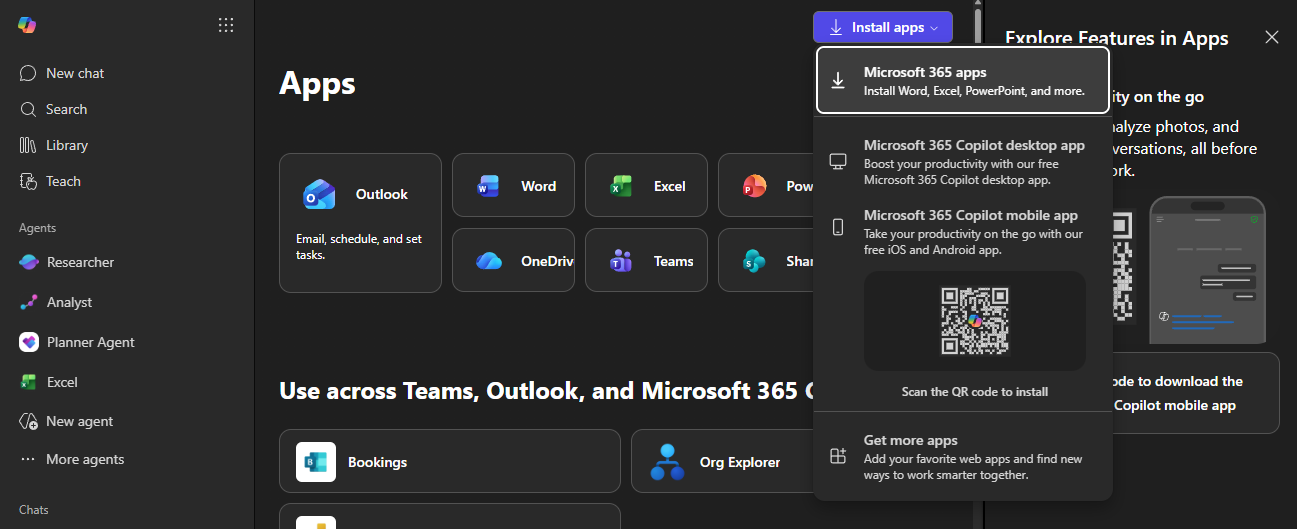
Select "Install apps" in the top-right, then click "Microsoft 365 apps."
-
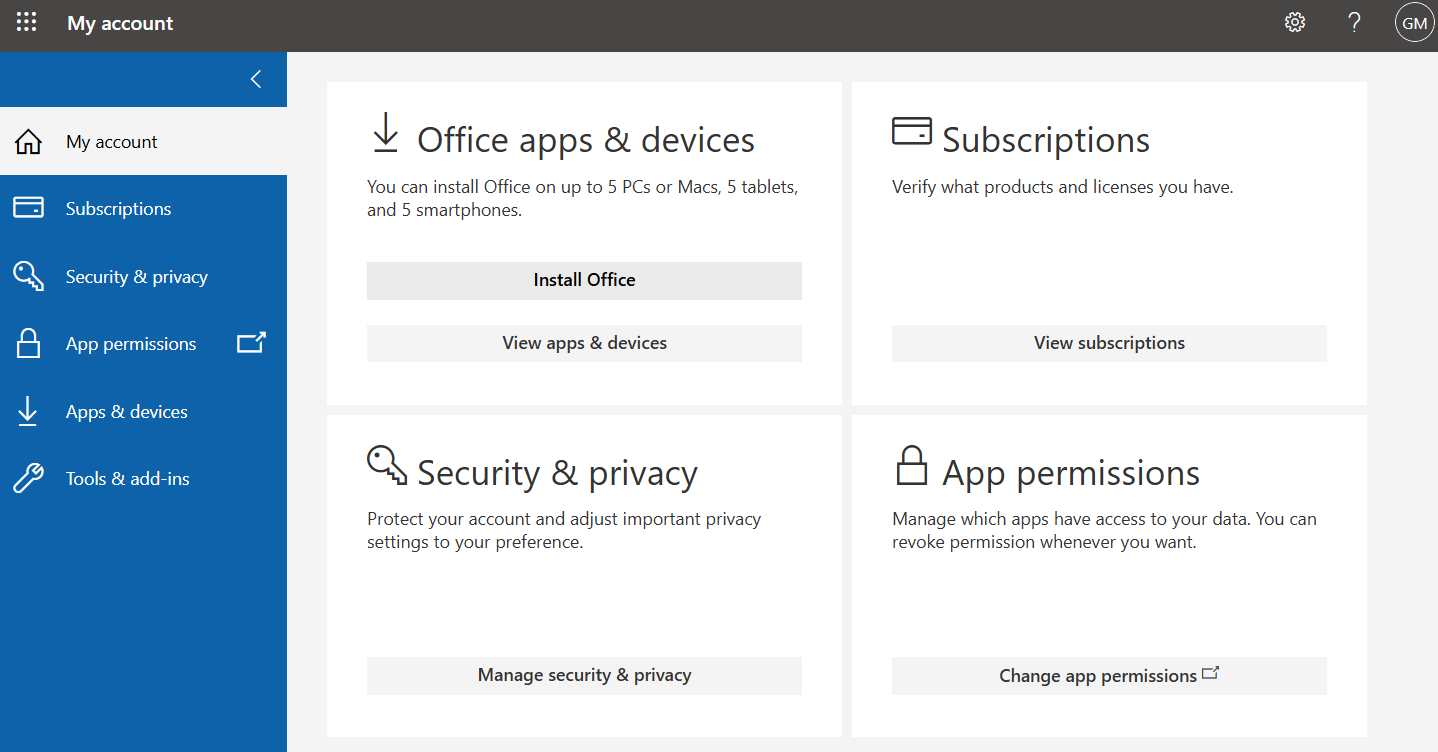
Click "Install Office" under "Office apps & devices"
-
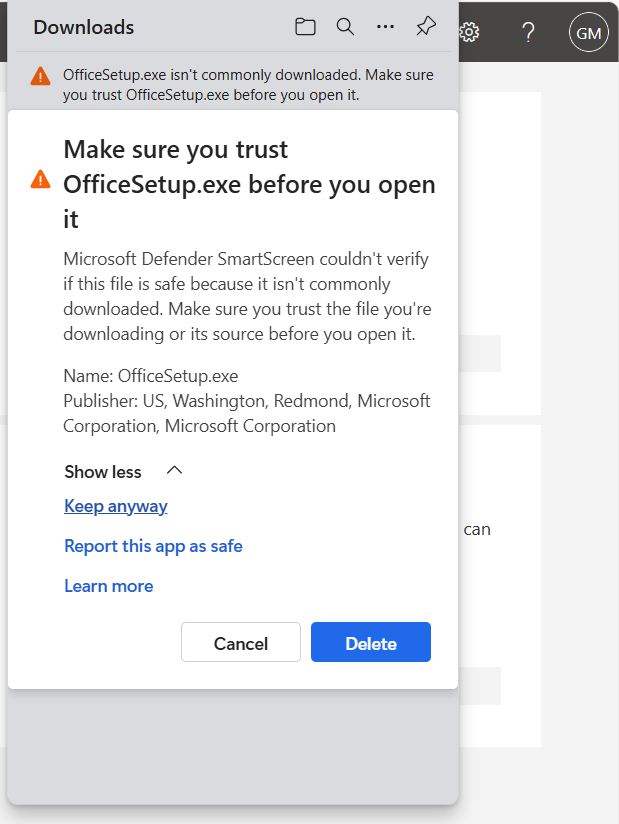
You may need to clear any security warnings about the installation file before it will download. This depends on your browser and your security settings.
-
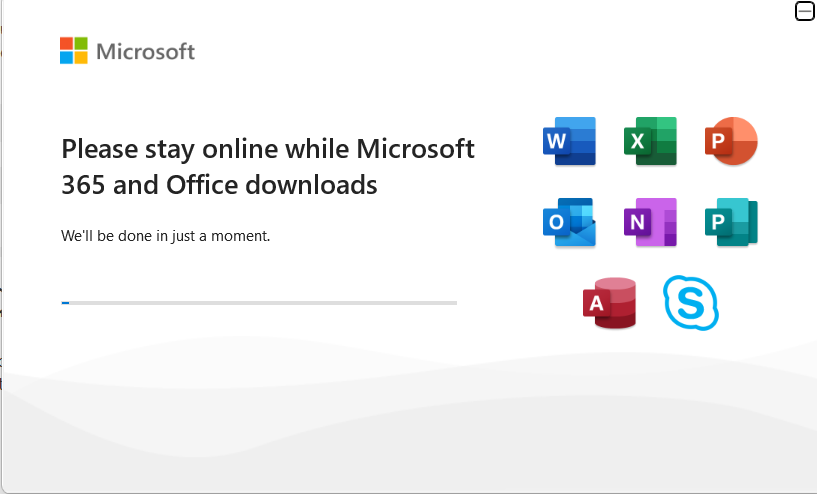
Microsoft 365 will start downloading and may take a few minutes.
- The installation process may vary depending on the device you are using (Windows/Mac).
- Do not restart, turn off your device or go offline during the installation process.
-
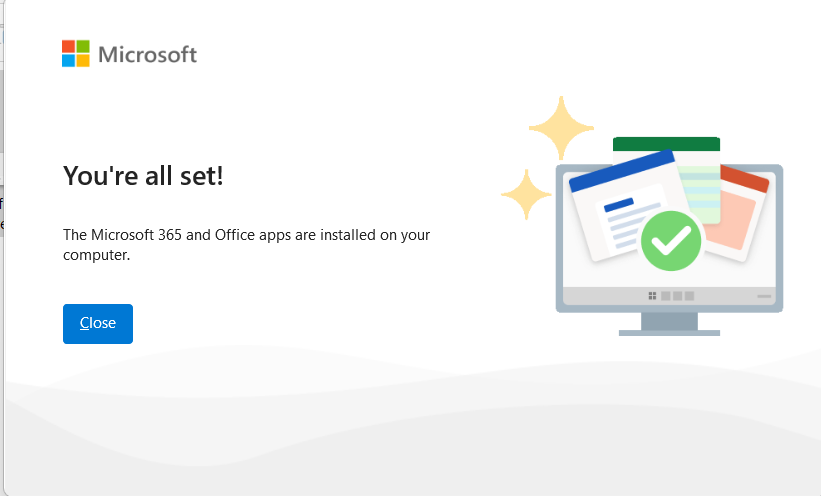
You will get an "all set" message when the installation is complete.
- Open the Word app to get started with your AU sign-in. Click "Sign in or create account."
-
If prompted, verify which type of account you are using: Select "Work or School Account" since this service is provided through Andrews University.
-
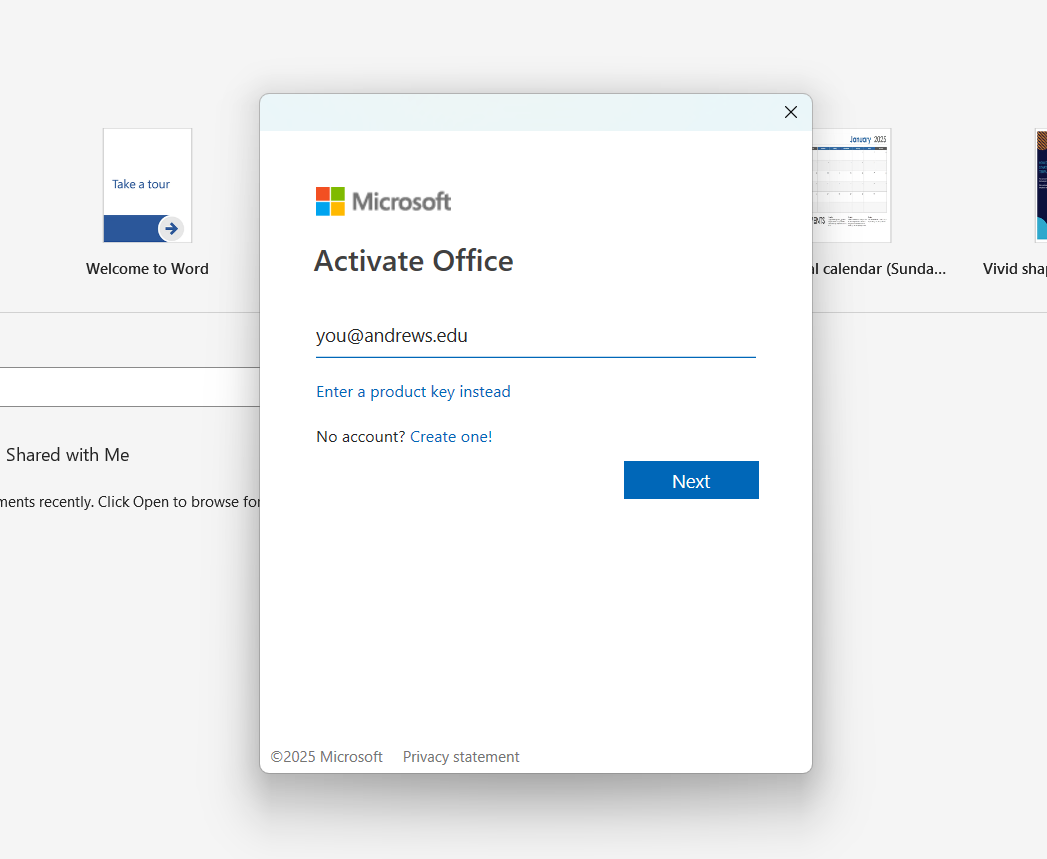
Sign-in with your Andrews email address and password.
-
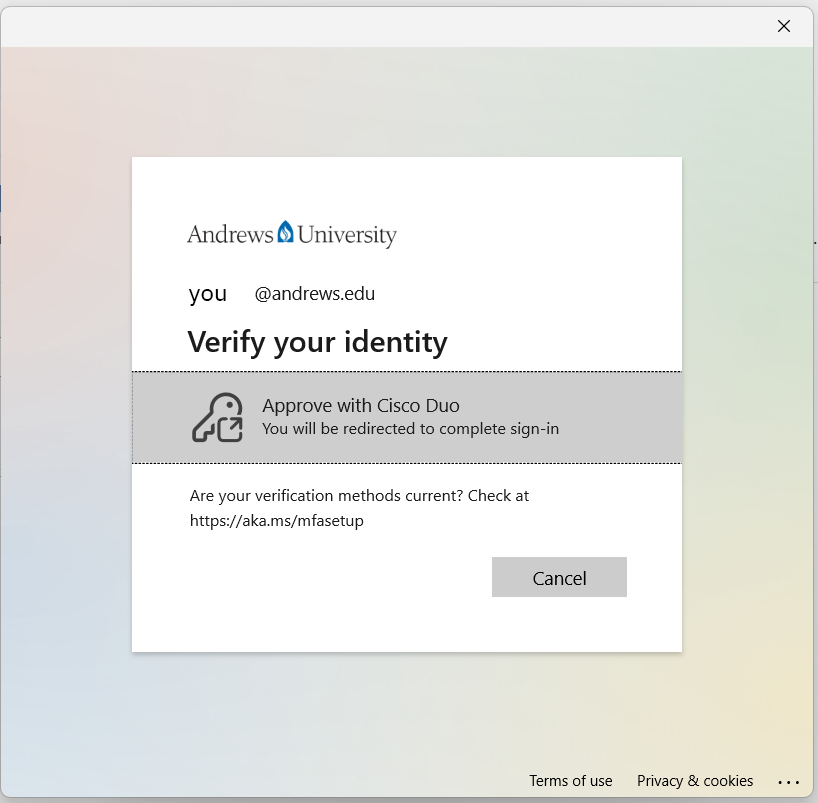
You will be prompted for Duo. Click on "Approve with Cisco Duo" and follow the authentication process.
- Select "Yes" or "No" to "sign into all desktop apps."
- Select "No" to "allow my organization to manage my device."
-
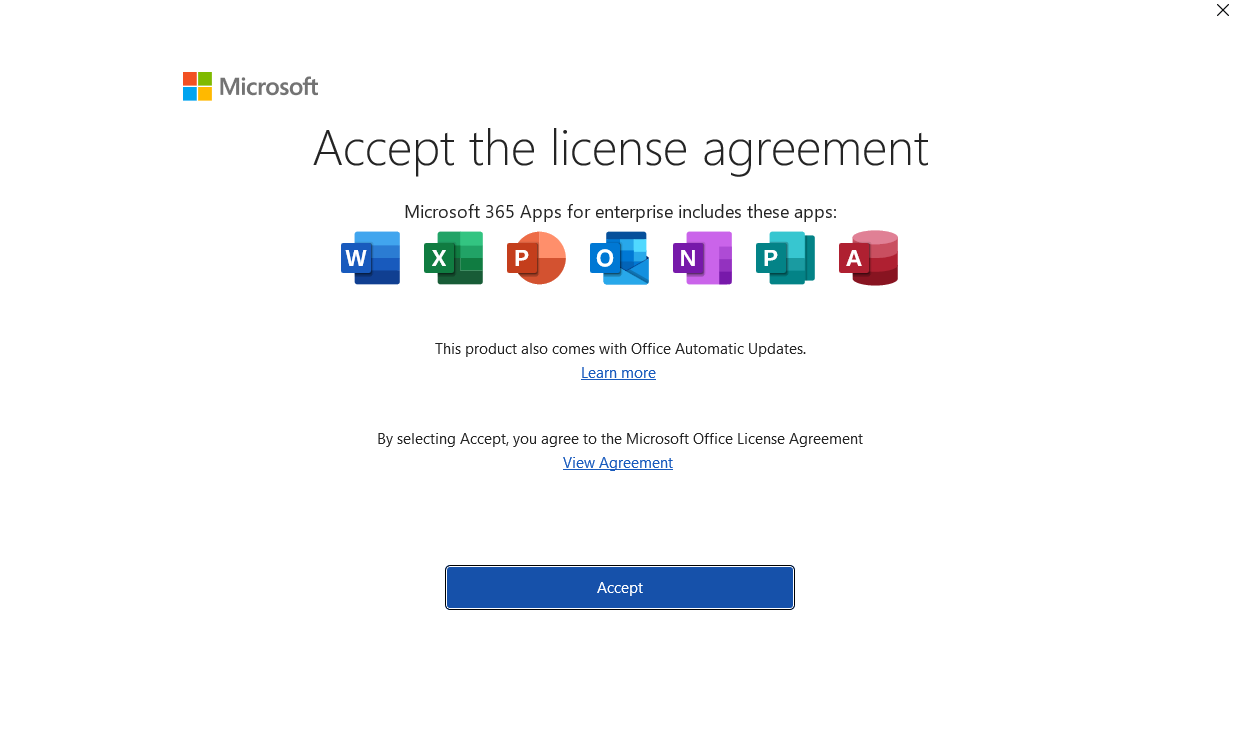
Finally, accept the license agreement to start using Microsoft 365 Copilot "Office."
Mobile Devices
Download the individual Microsoft 365 apps for your mobile device.
Available at:


Having Trouble Installing Office 365?
For questions or additional help, email helpdesk@andrews.edu or call the ITS Help Desk at 269-471-6016.

- Phone: 269-471-6016
- Email: helpdesk@andrews.edu